Creating An Account
If you picked a server with open sign-ups:
-
On the homepage of your server of choice, click on the "Create account" button on the right side column.
’s homepage highlighting the name of the sever and the create account button.](//d33v4339jhl8k0.cloudfront.net/docs/assets/640bbbf68ca4460845b4a504/images/6995e4f7ac245724735b1387/file-vd02hqkBPT.png)
-
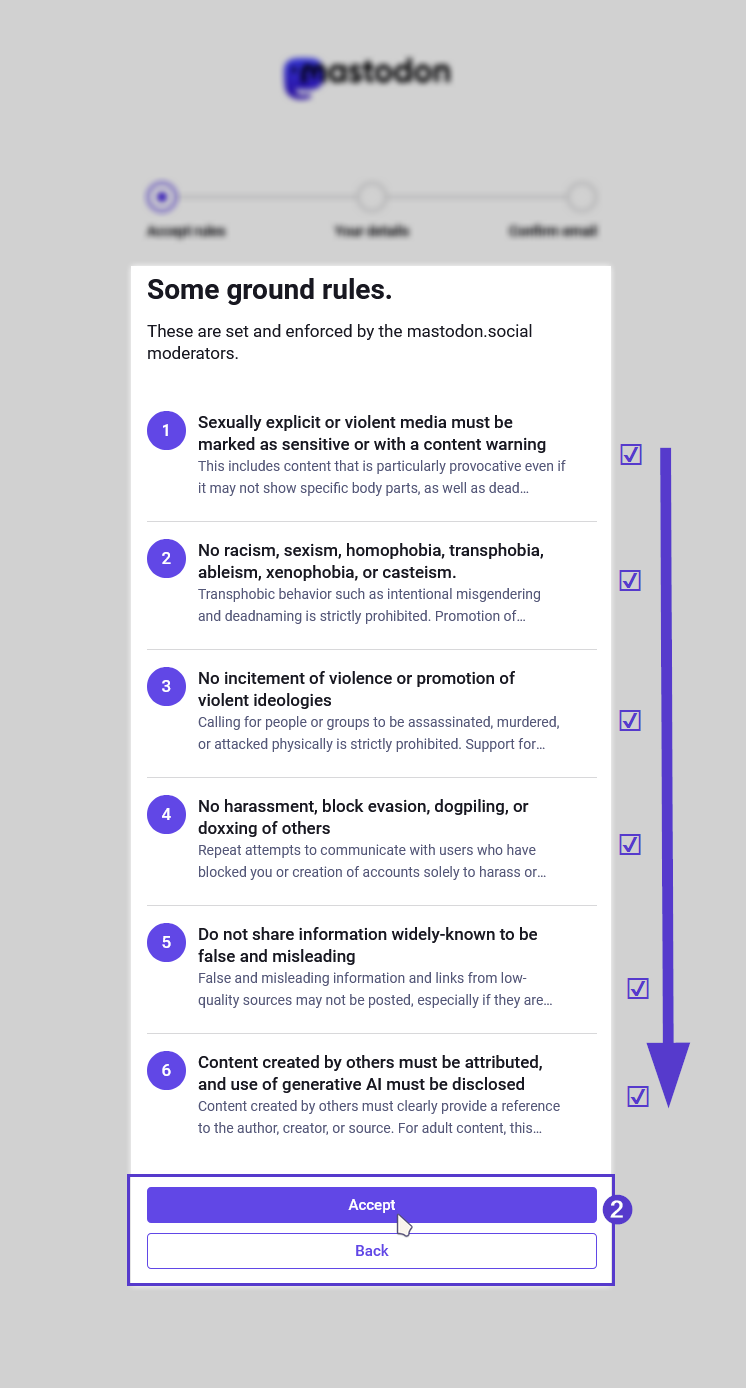
Next, you will be shown a screen with the server's ground rules. You must accept and agree to these rules in order to create and keep an account on your server of choice. Make sure they align with what you want and need from your social networking experience. If you agree, click the "Accept" button to proceed to the next step.
-
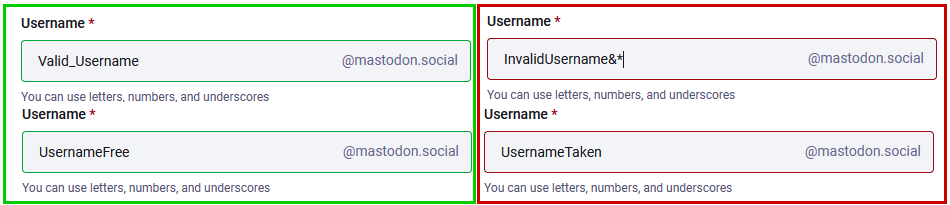
Fill in your desired username if it is available and valid (only use letters, numbers, and underscores). The border will change colour to green in the username is available and valid and to red if not. Please note: Once chosen, your username cannot be changed or edited. Make sure to type your username exactly how you want it to appear, including any uppercase or lowercase letters. You will not be able to edit it once it is submitted.
-
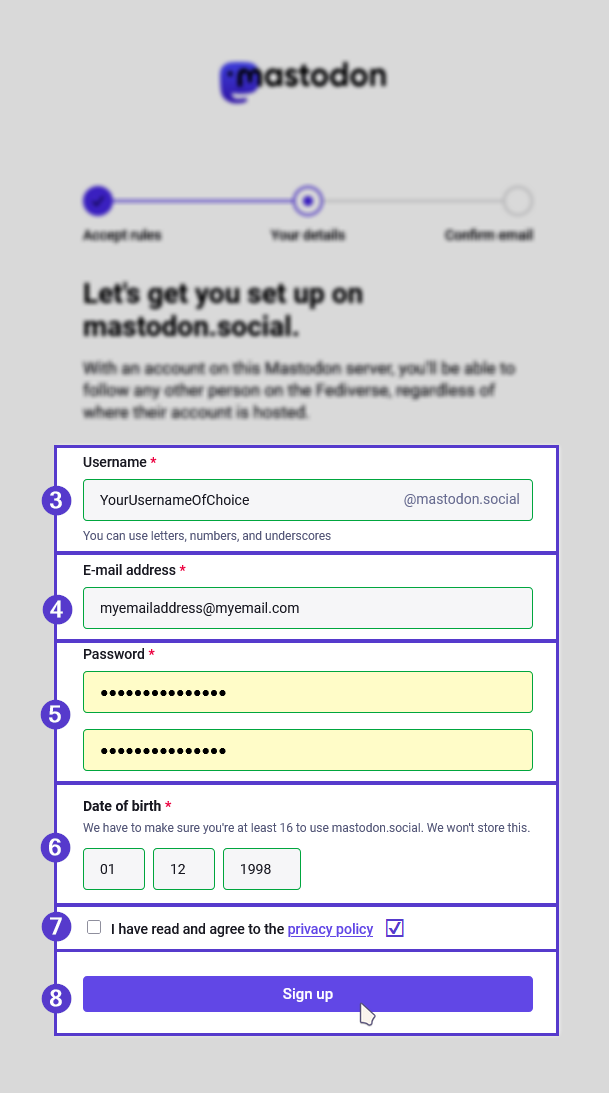
Fill in your details such as email address, password, and date of birth. (Your date of birth will not be stored, but is need it to confirm you are old enough to have an account on your server of choice.) There is one more step to complete before you select the "Sign up" button.
-
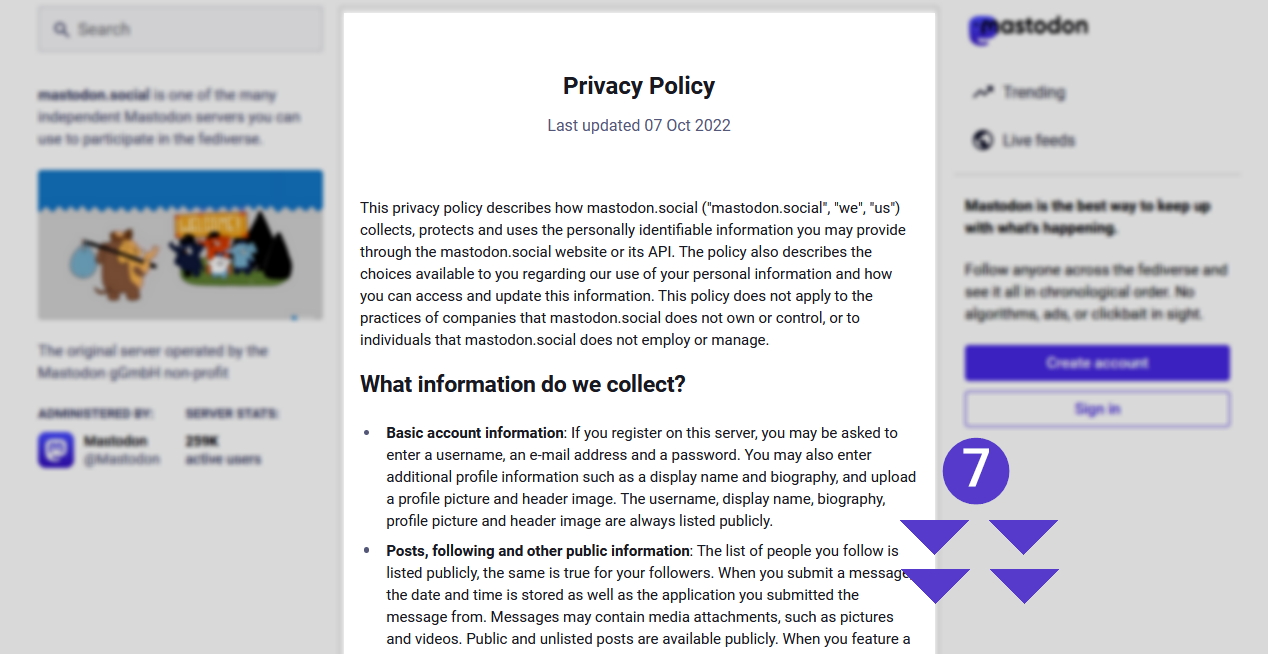
Read the Privacy Policy. If you agree to it, tick the box to confirm you have read and agreed to it on the same screen as the previous step. Click sign up.
-
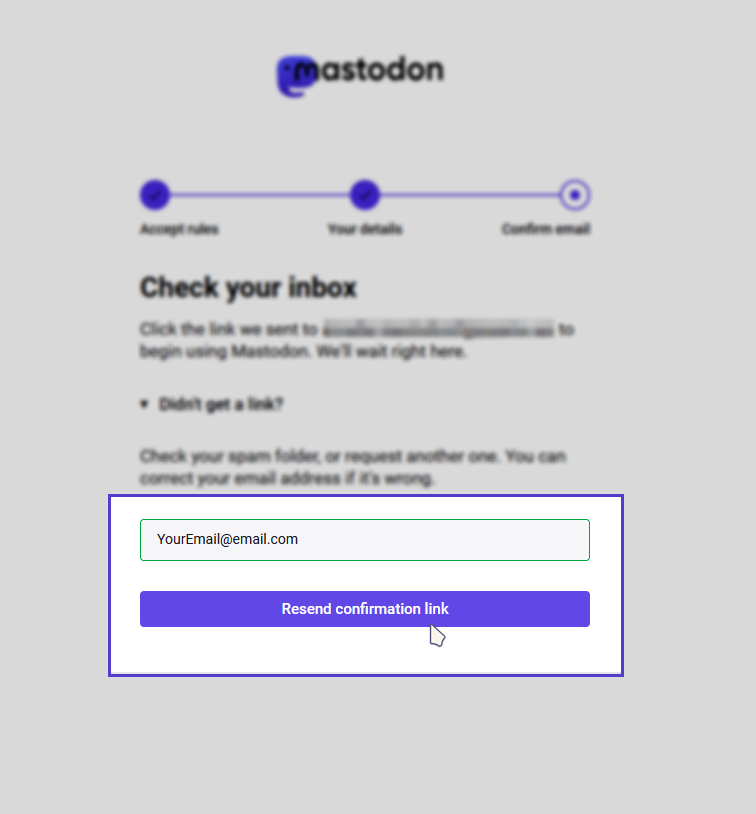
You will have 7 days to confirm and activate your account. If you do not confirm your account, it will be deleted and you will have to start again. If you do not receive the confirmation email, check your spam folder, reach out to the instance admin, or you can try a different email address in the registration page.
-
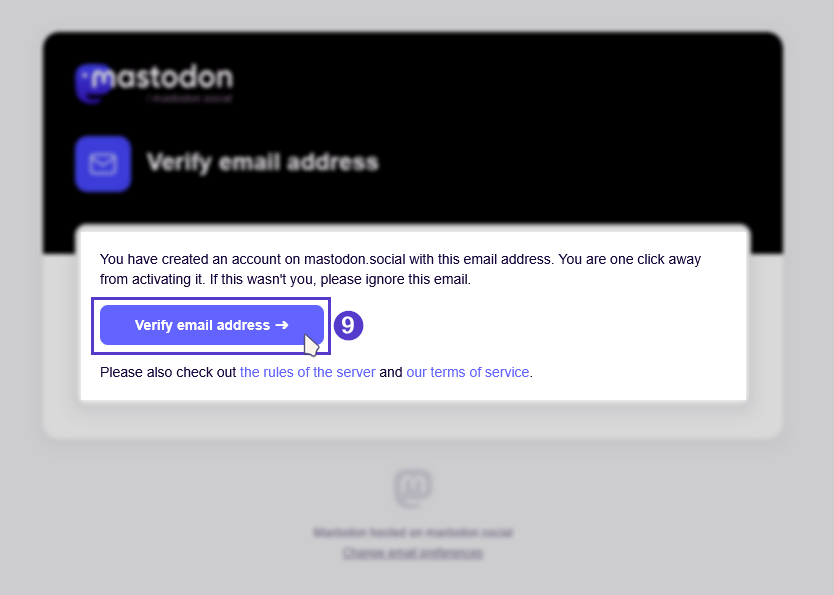
You will receive a confirmation email to your inbox which requests that you verify your account and email address.
-
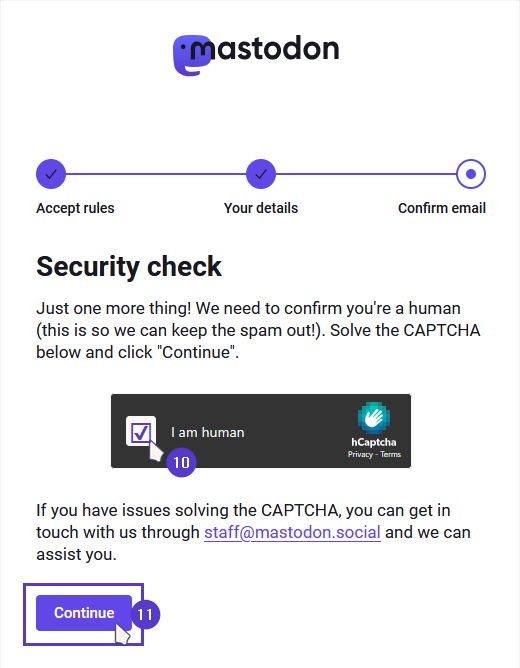
If there is a CAPTCHA to complete, you must complete it before your account is activated and ready to use.
- Remember, to sign in you will use your email address and password, not your username. Your username will not work for signing in to your account.
’s homepage highlighting the name of the sever and the create account button.](http://d33v4339jhl8k0.cloudfront.net/docs/assets/640bbbf68ca4460845b4a504/images/6995e4f7ac245724735b1387/file-vd02hqkBPT.png)
