Personalise Your Profile After Creating an Account
After you create an account, the first page you see is the "Profile setup" page. Most people will not follow or accept follow requests from empty profiles, so let's fill it up.
-
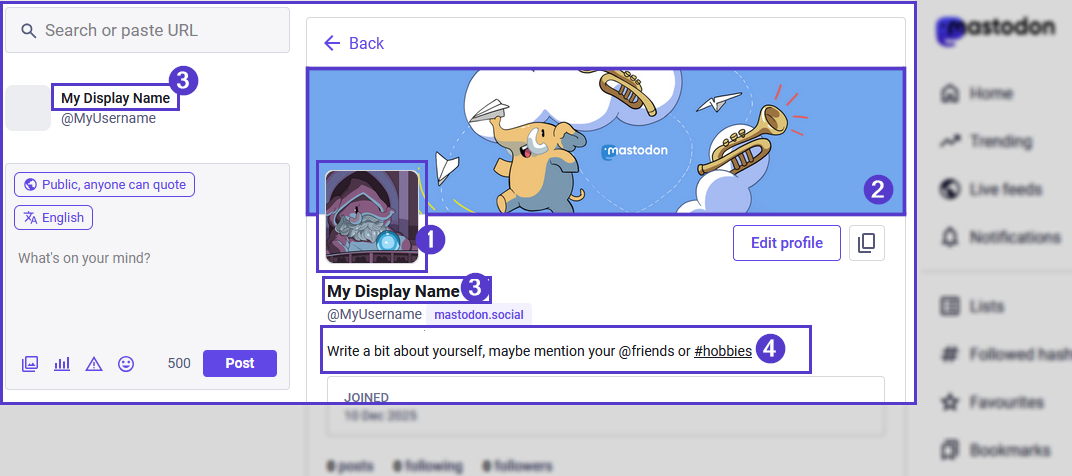
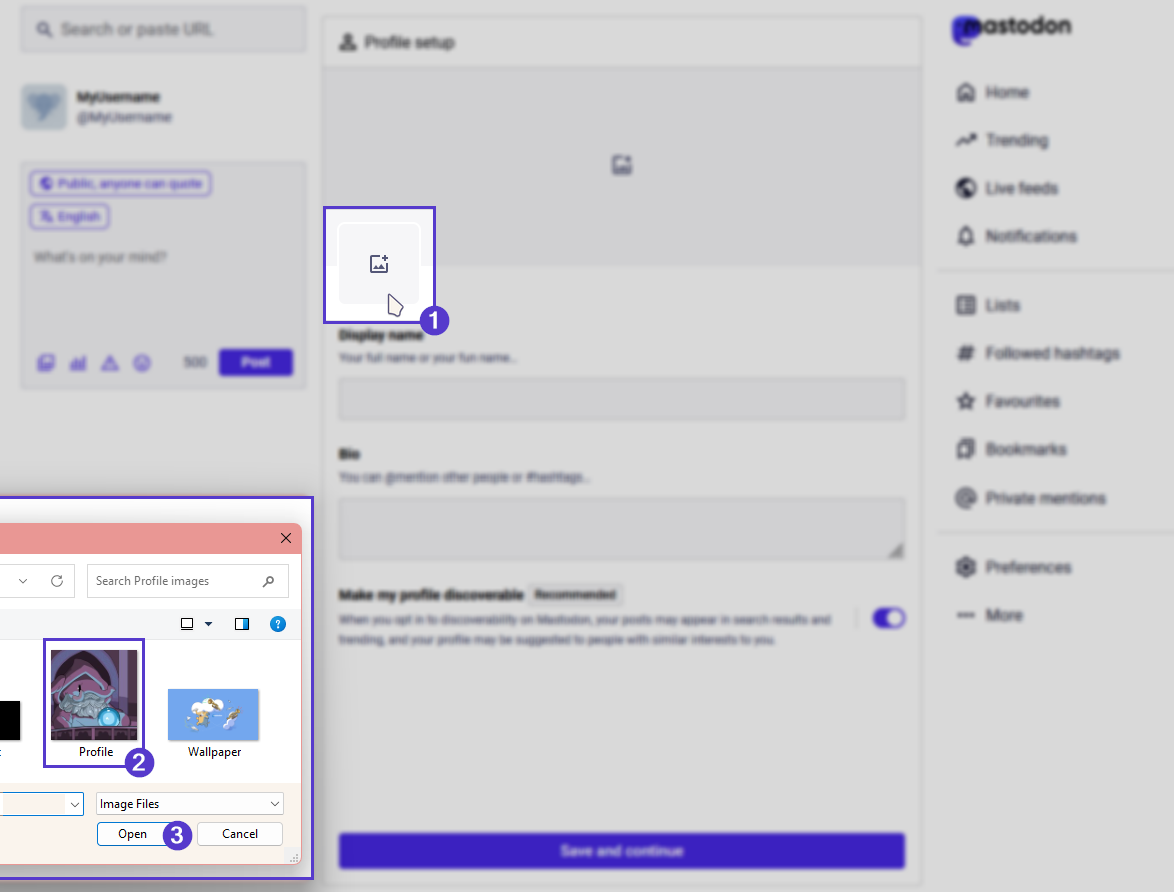
Your profile picture or avatar is an icon that is displayed next to your posts. It is part of your visual identity. To upload a profile picture, click on the small square on the top left of the page. This will open a file picker dialogue where you can navigate your files and chose a suitable avatar. You can upload an image as a PNG, GIF, or JPG file up to 2MB in size. This image will be downscaled to 400x400. If your image is not square, the avatar will be cropped into a square. You cannot adjust how the image will be cropped after you upload it.
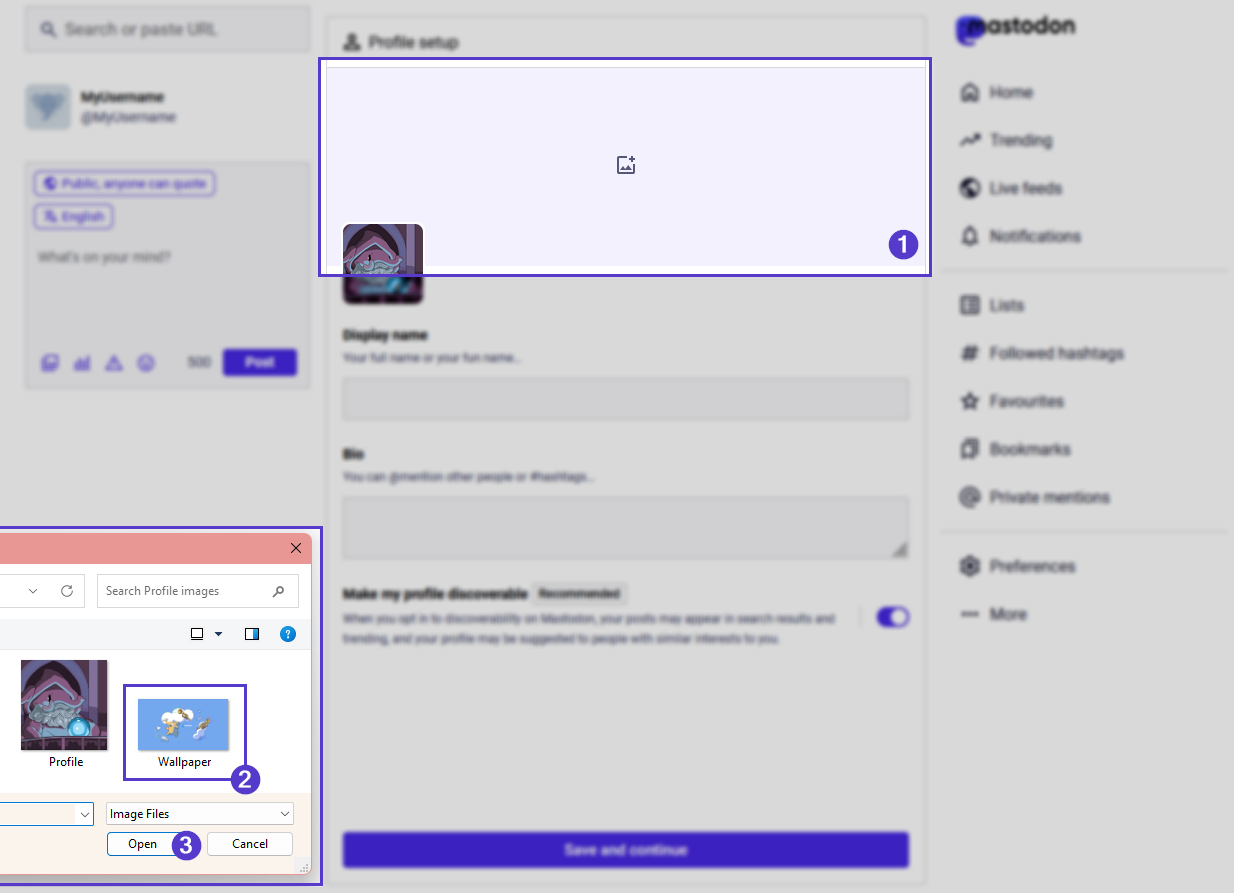
- Your header is a banner image shown at the top of your profile, as well as in profile cards. Profile cards are displayed in follow lists and account directories. To upload a header,click on the banner space and use the file picker dialogue to select the image you want to use. You can upload a header as a PNG, GIF, or JPG image up to 2MB in size. This image will be downscaled to 1500x500.
- Your display name is shown to other users before your address. You can set a display name by filling the matching field. You’re allowed to write up to 30 characters by default. You can change your display name as often as you like.
- Your bio is a short description of yourself that is displayed as a note on your profile. You can include hashtags and tag other accounts in your bio. The limit is 500 characters by default. All links are counted as 23 characters, no matter how long they actually are, so there is no need to use a link shortener to save characters. In fact, using a link shortener is actively discouraged. You can findmore advanced profile customizations like "Featured hashtags" in the preferences menu.
-
Select the discoverability toggle to match your preferences, and to match how you wish to use your account. This setting can be adjusted at any time if you change your mind.
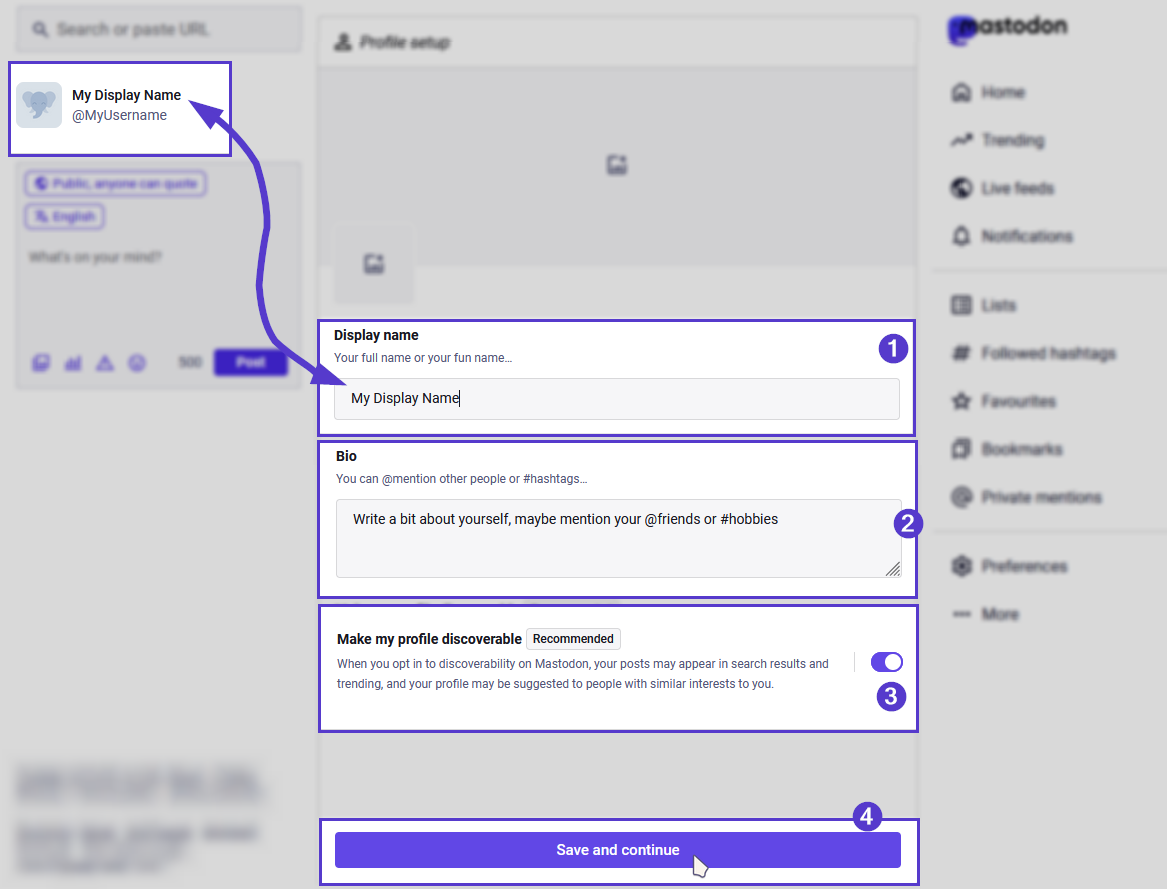
- Make sure to save your changes before navigating away from the "Profile setup" page. They will be displayed on your profile page immediately.