Creating a Collection
Collections are a feature in Mastodon that allow you to create and share curated collections of profiles. There are two different ways to create a Collection.
From Your Profile Page
- In your Profile click the “Features” tab.
- At the bottom of the page you will find the Collections Sections. Select the “New collection” button.
From Your Home Page
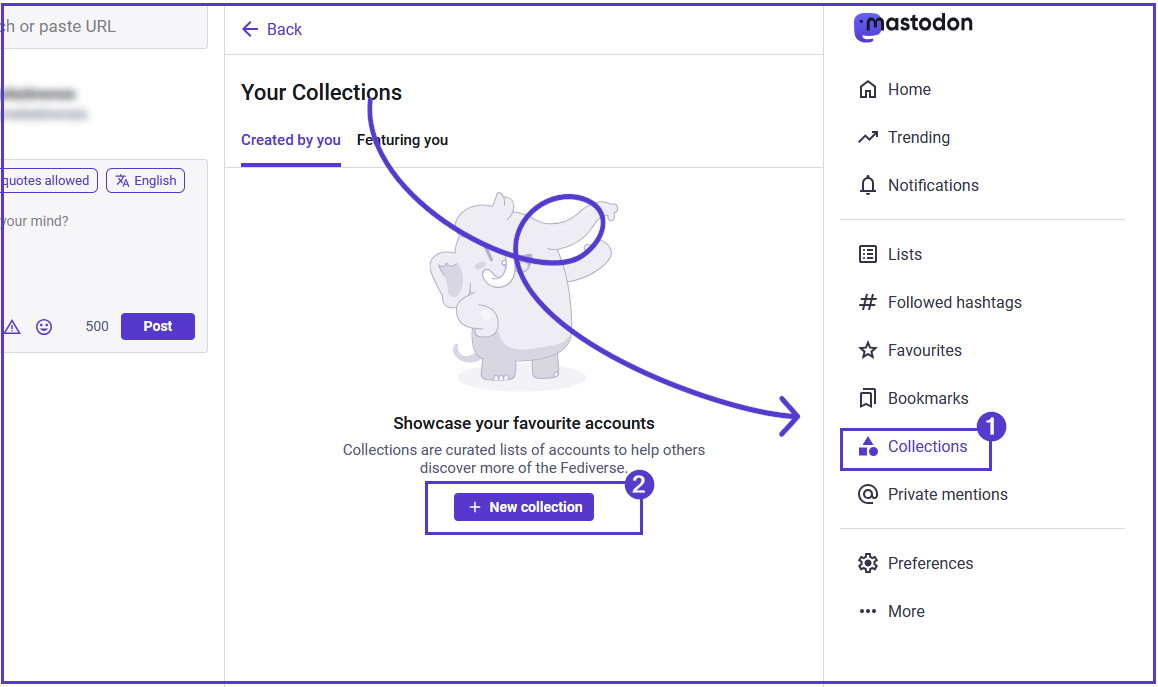
- Select the Collections icon from the right-side menu on your screen. It will take you to the Collections page.
-
From there click on the “New Collection” button
-
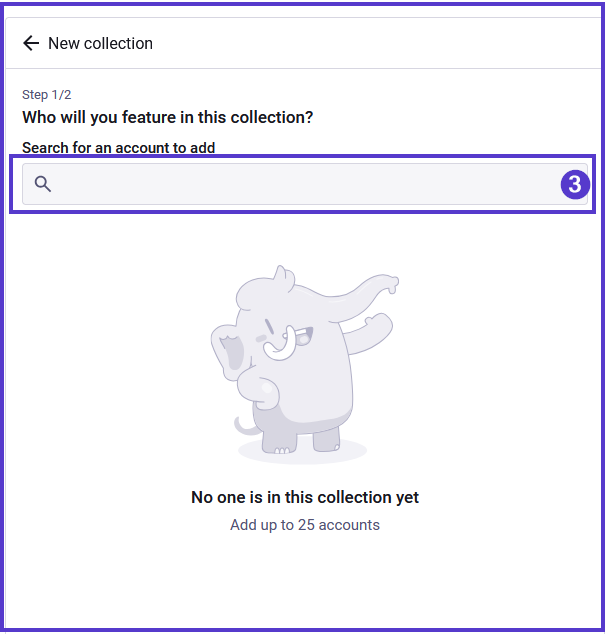
Next, you will see a page where you can search for accounts to add to your Collection. Right now, this is limited to accounts you already follow. You will not be able to add accounts that have opted out of discovery, or that are hosted on a server that doesn’t support Collections.
-
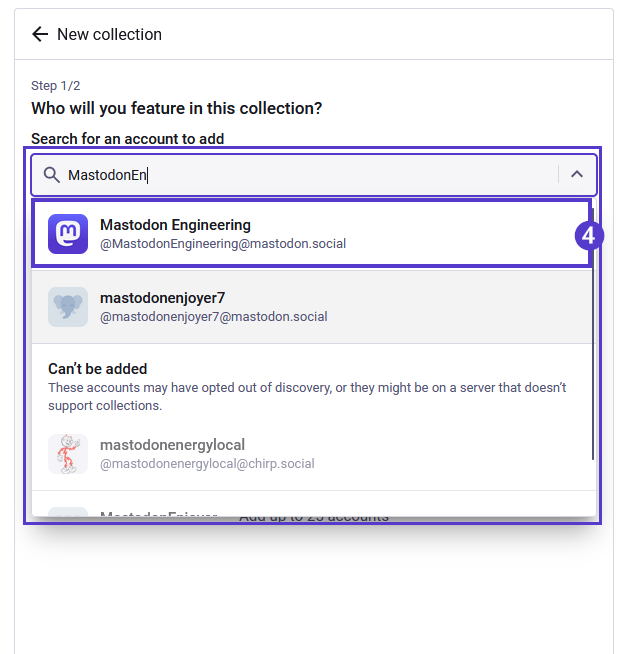
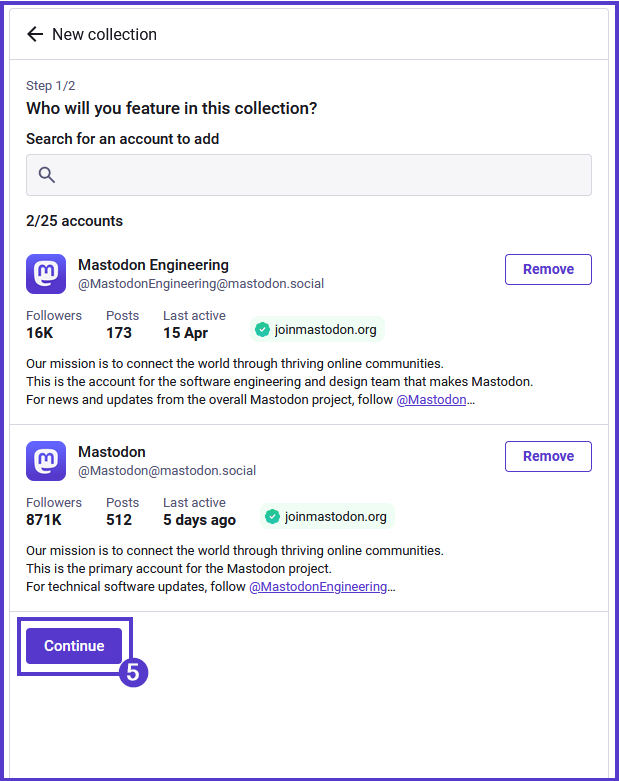
Search for the account you wish to add, and clink anywhere on the menu item to select it. You can add up to 25 accounts to your Collection. Once you have added all the intended accounts select “continue” to finish your Collection.
-
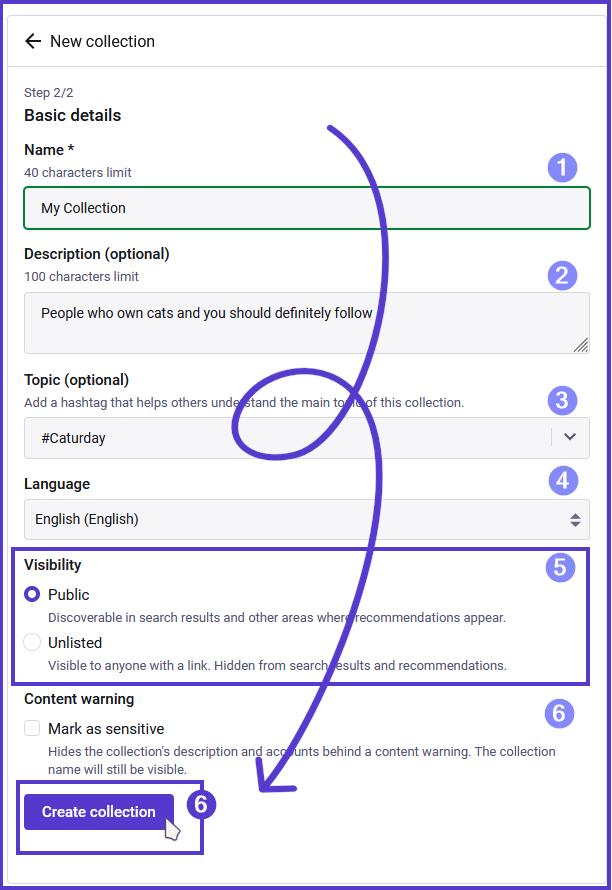
Next give your Collection a name. Optionally, you can add other information such as a description or a #Topic. Make sure to select a language and visibility. If the accounts on the list could be considered sensitive, make sure to mark them as sensitive in the Content Warning section.
-
When you’re done, select “Create Collection.”
- Your collection will be saved and displayed on your Featured page. The three-dot menu provides options editing, sharing, and deleting your Collection.

