Change Your Password
There are two ways to change your password. The method you use depends on whether you know your password or have access to your account. If you have lost your current password and you can’t login, you must request a password reset link.
Reset Your Password
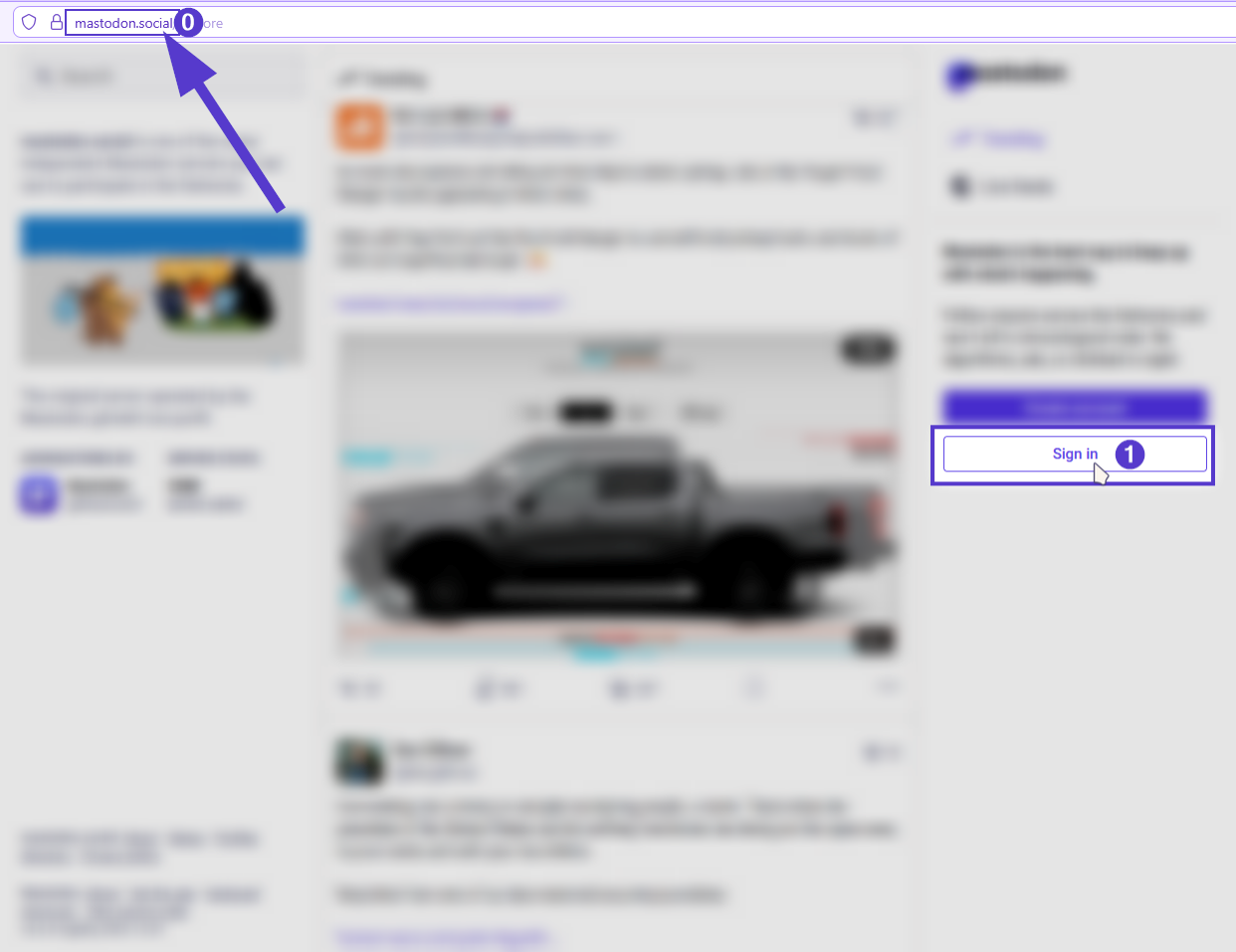
- Go to the login page of your respective server. It is important that you start on the login page for the server where your account is hosted, otherwise no reset link will be sent.
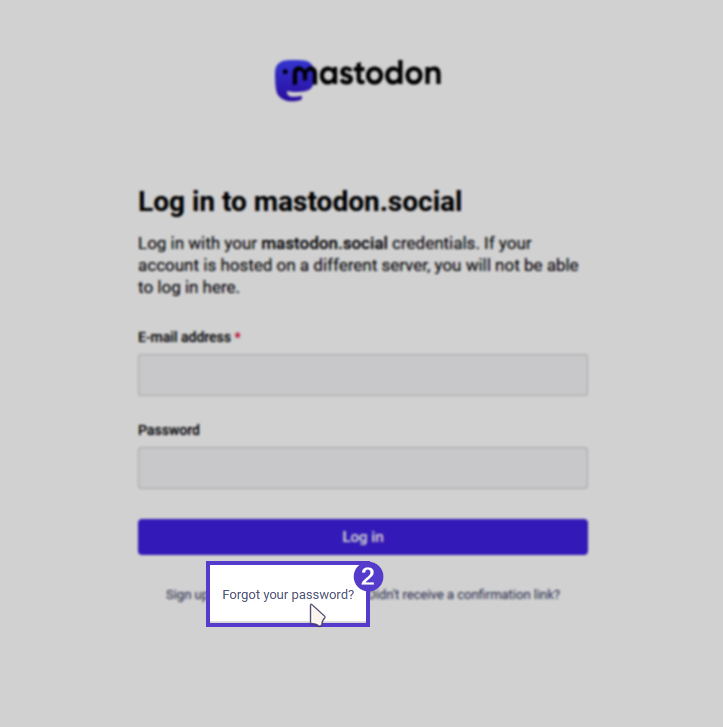
- Select the “Forgot your password” menu.
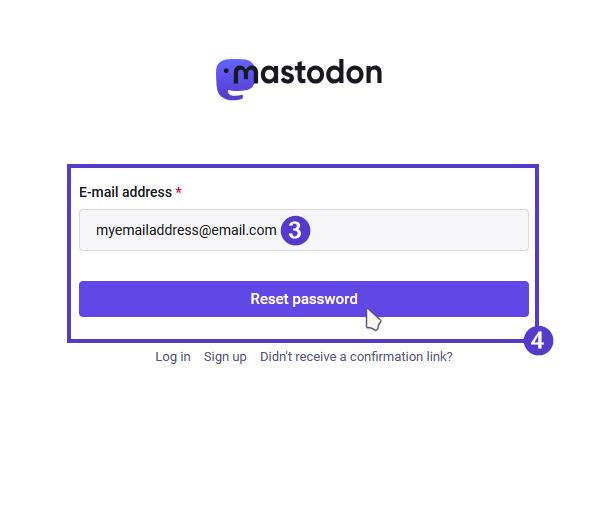
- Fill in with your email address and click the “reset password” button.
- You will receive a password recovery link at your email address in a few minutes. If you don't receive it, please check your spam folder. The email will have a link to change your password. Click on it to change it.
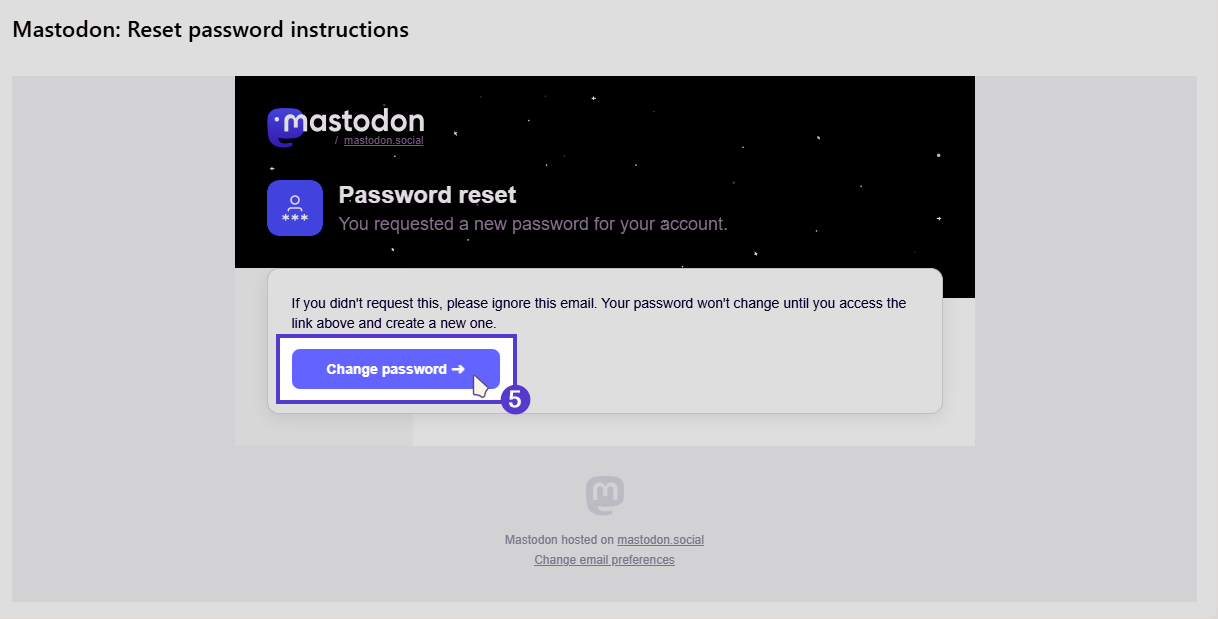
- Fill in your new password and confirmation. Click on “Set new password” to save the changes.
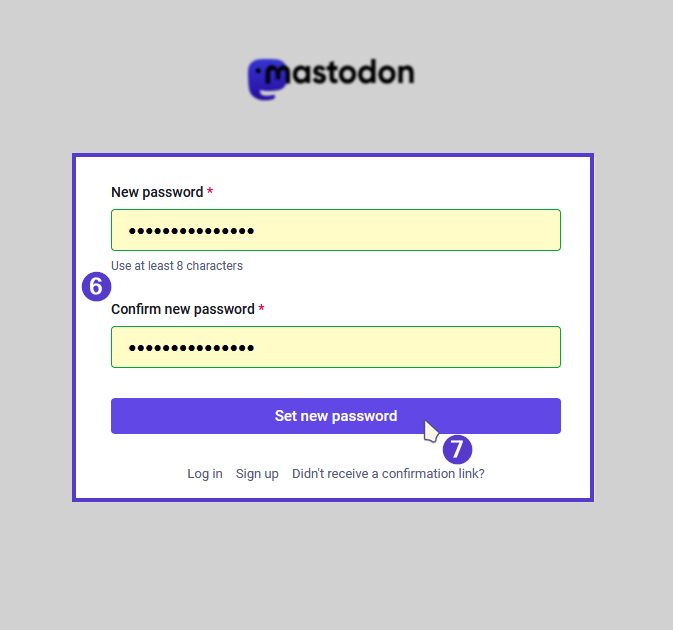
- You can now log in with your email and new password. Make sure you use your email address, not your Mastodon username.
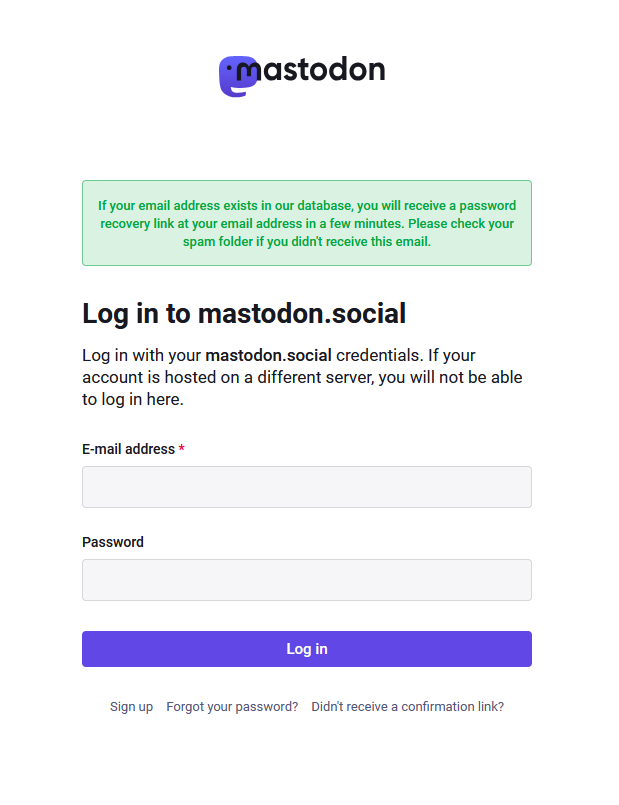
If you don’t receive a reset email, it could be for any of the following reasons.
- You may have requested a password reset link from a server that isn't hosting your account.
- The email you used to request your password is not the email you use to login to your account.
- Your email provider has completely blocked emails from Mastodon and they never arrive. If this is the case, you’ll need to email us to figure out the problem.
Change Your Password
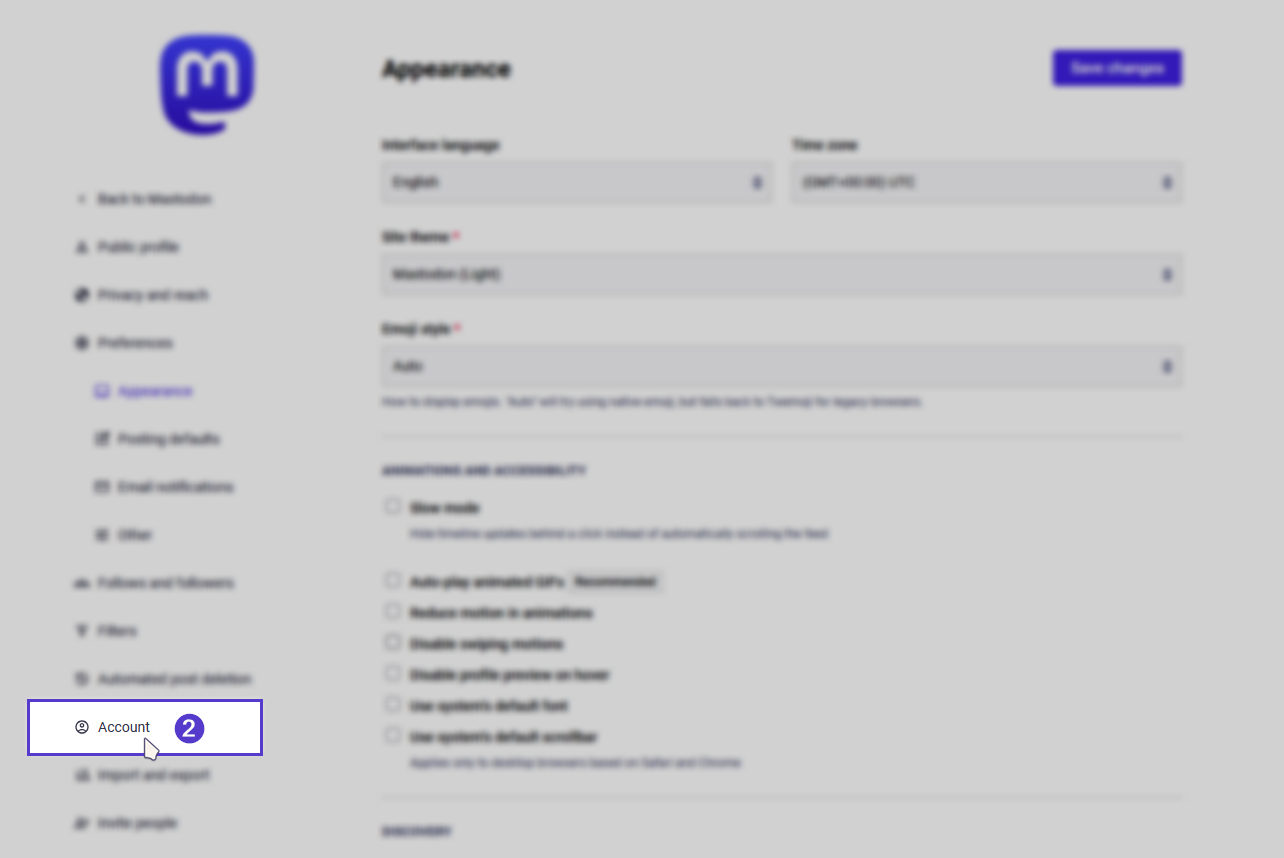
If you already know your current password, you can change it by navigating to your account preferences.
-
Go to the preferences page.
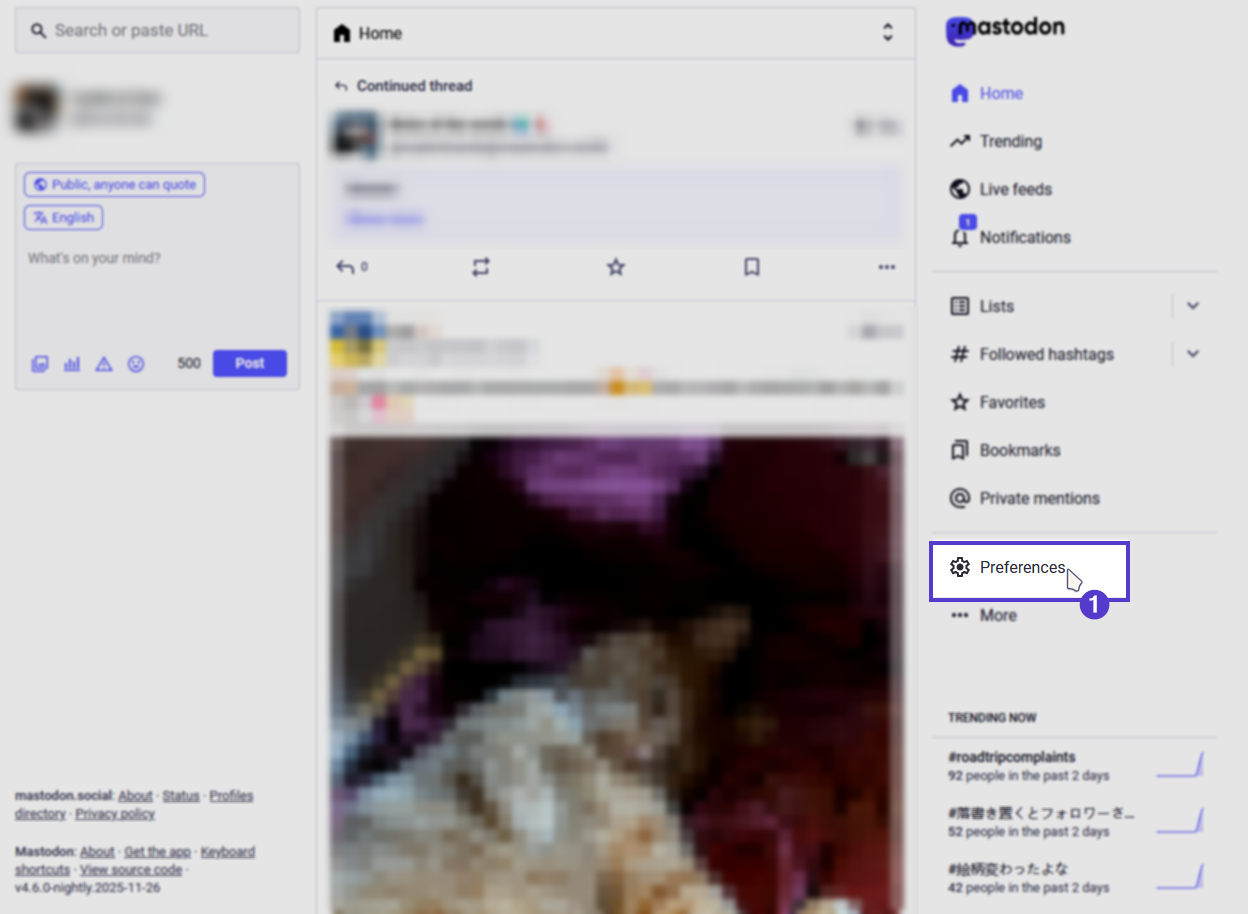
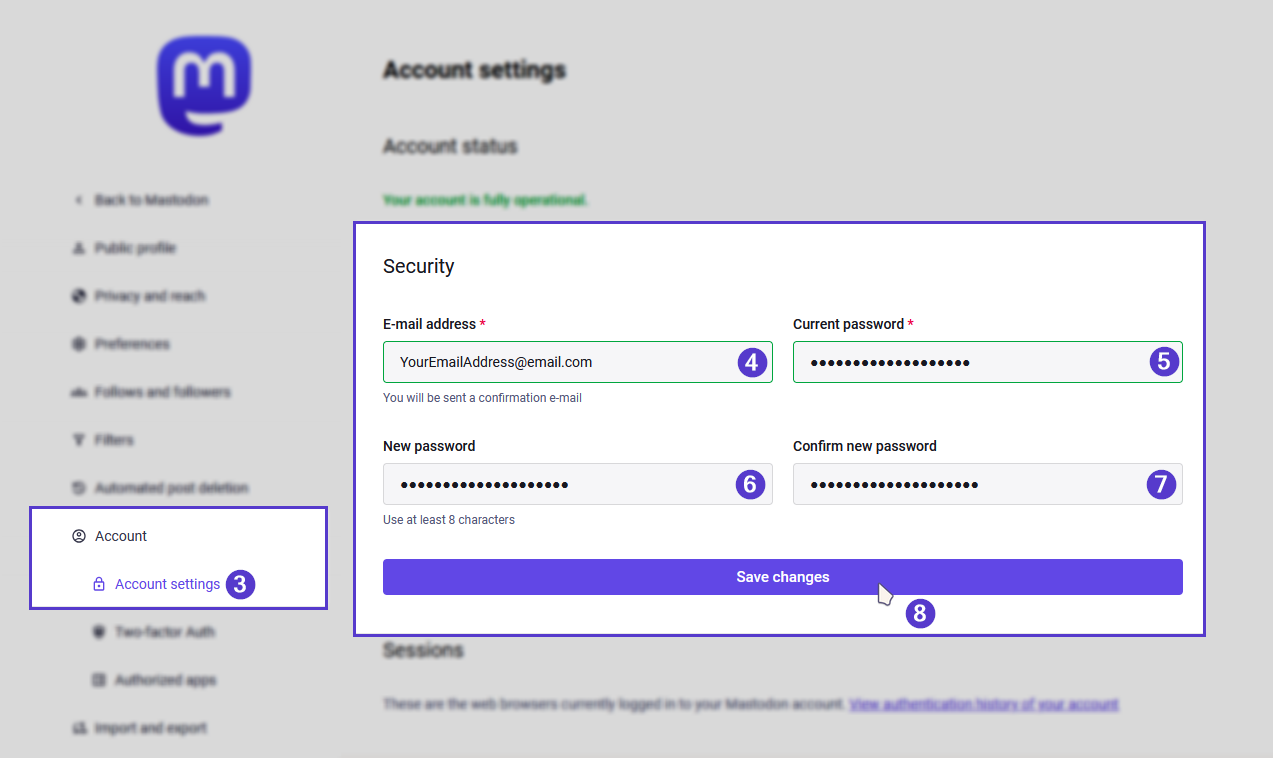
- Navigate to the accounts settings page.
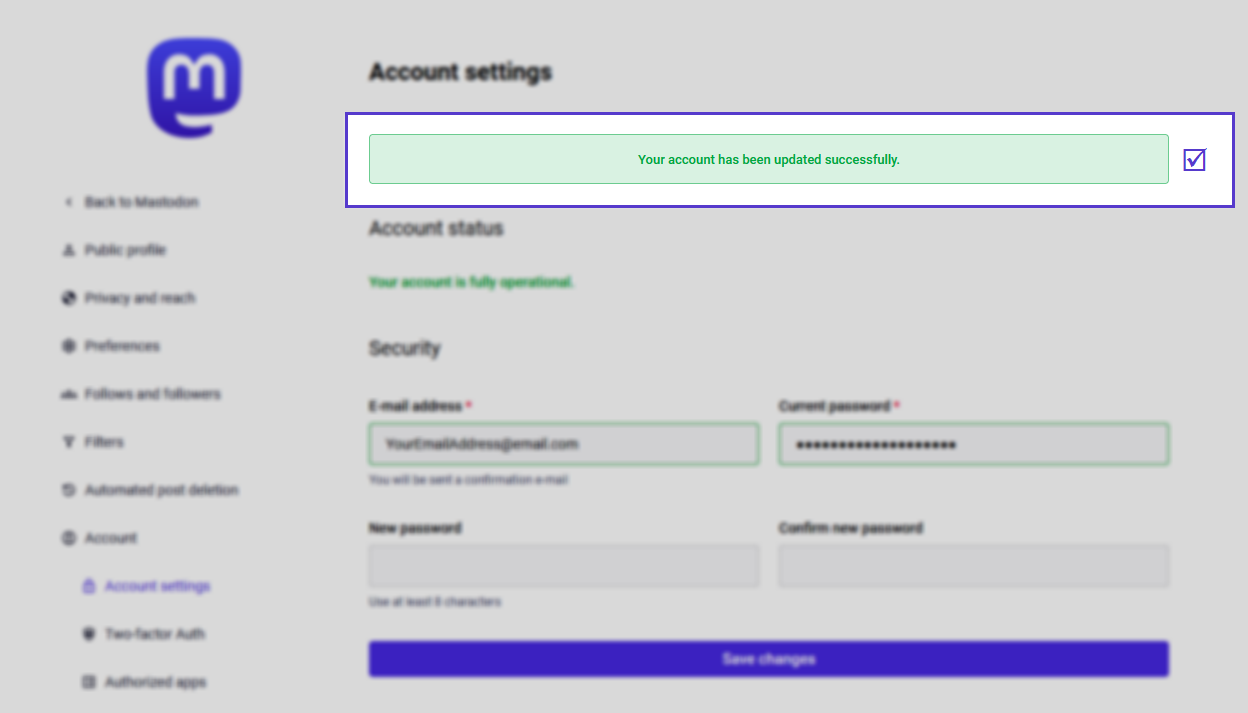
- Under the security section fill in the required details, email, current, and new password and save the changes.
- If done correctly you will see a message, which signals the update was successful.